Scratch is a Block based programming language. Instead of manually writing coding logic, the user gets to drag and drop logic-based blocks from the tools area onto the editor area.
For example, if we were tasked with the following:
when the project starts
move your sprite by some number of steps
then jump up by some number
We would drag and drop the following blocks to the editor area to accomplish this task:
The key with having a sprite change over time (or animation) is using time durations, above we are using the “wait” block with a given seconds duration
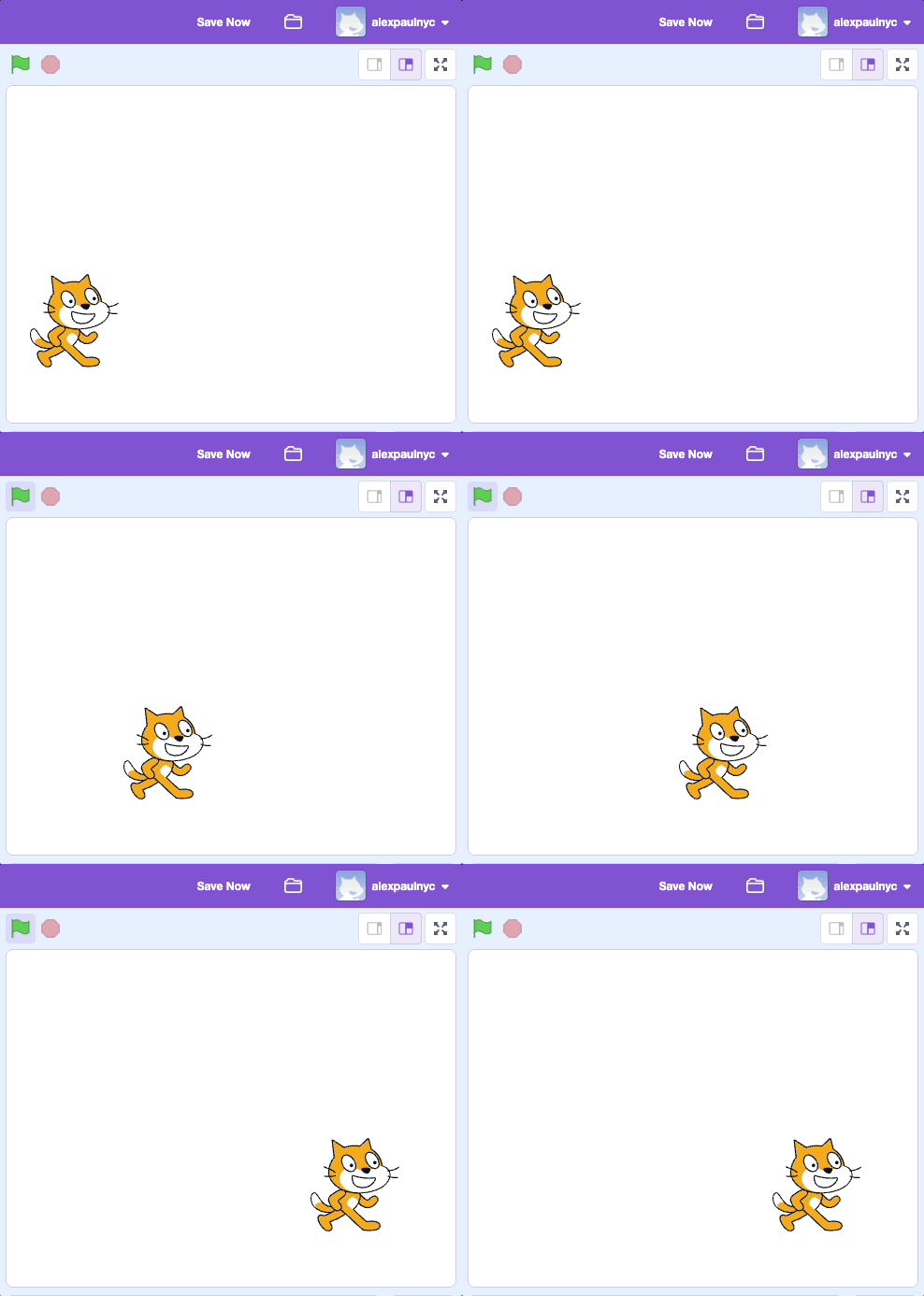
Result of the code above
You can start without creating an account, however, if you want to save your projects creating an account will be required. Get started here.
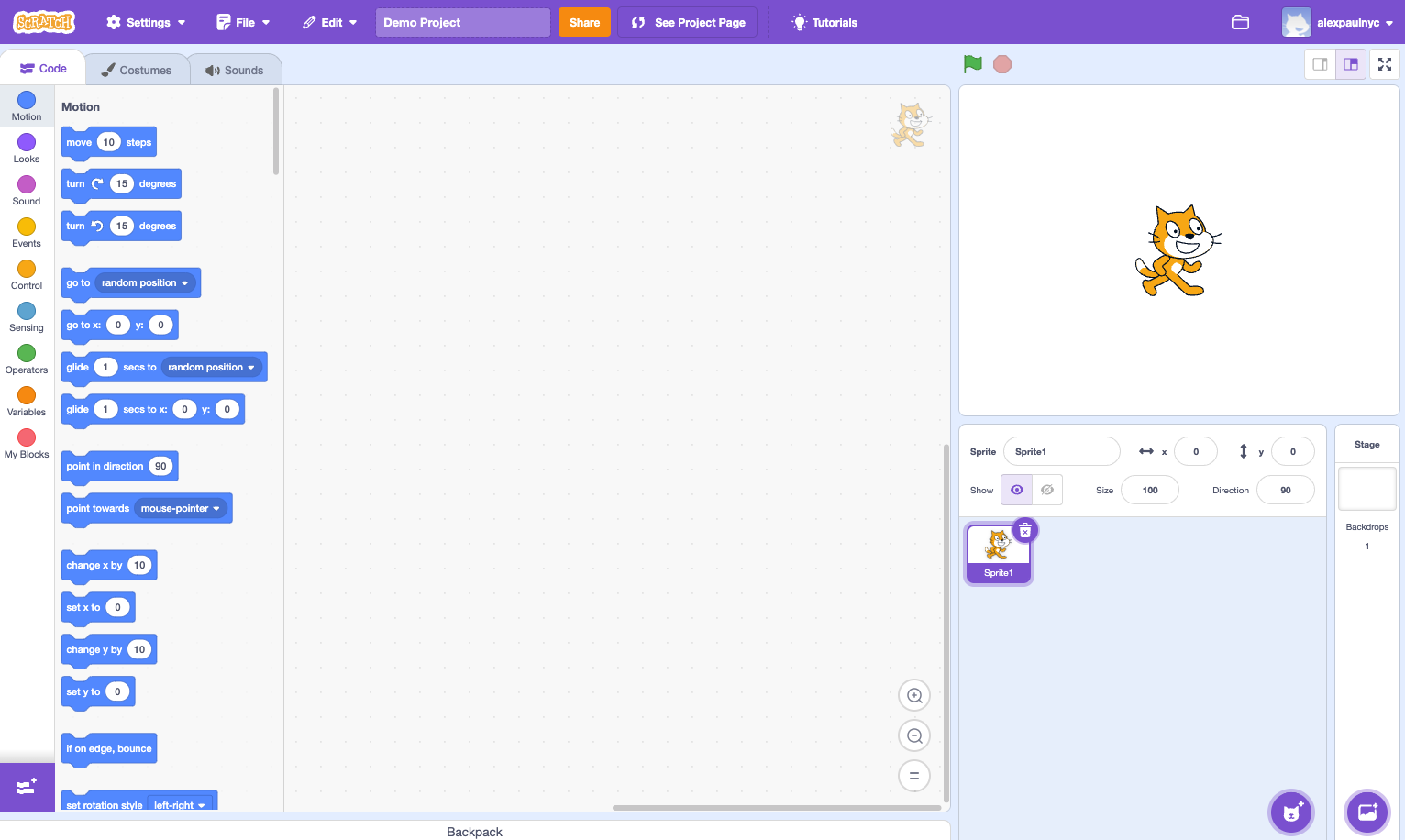
Scratch User Interface
Tools
Being familiar with the tools will make you more comfortable and aware of what is available as you build your Scratch projects.

 alexpaul.dev