
This post is a quick walkthrough on getting started with integrating App Intents, App Shortcuts, and surfacing your app’s content using Siri.
I’ve been working on an app that tracks my daily hydration and exercise. Every day, I find myself repeating similar steps to log my progress in HydroHealth. Noticing this pattern, I decided to integrate Shortcuts into my app to streamline these actions.
HydroHealth
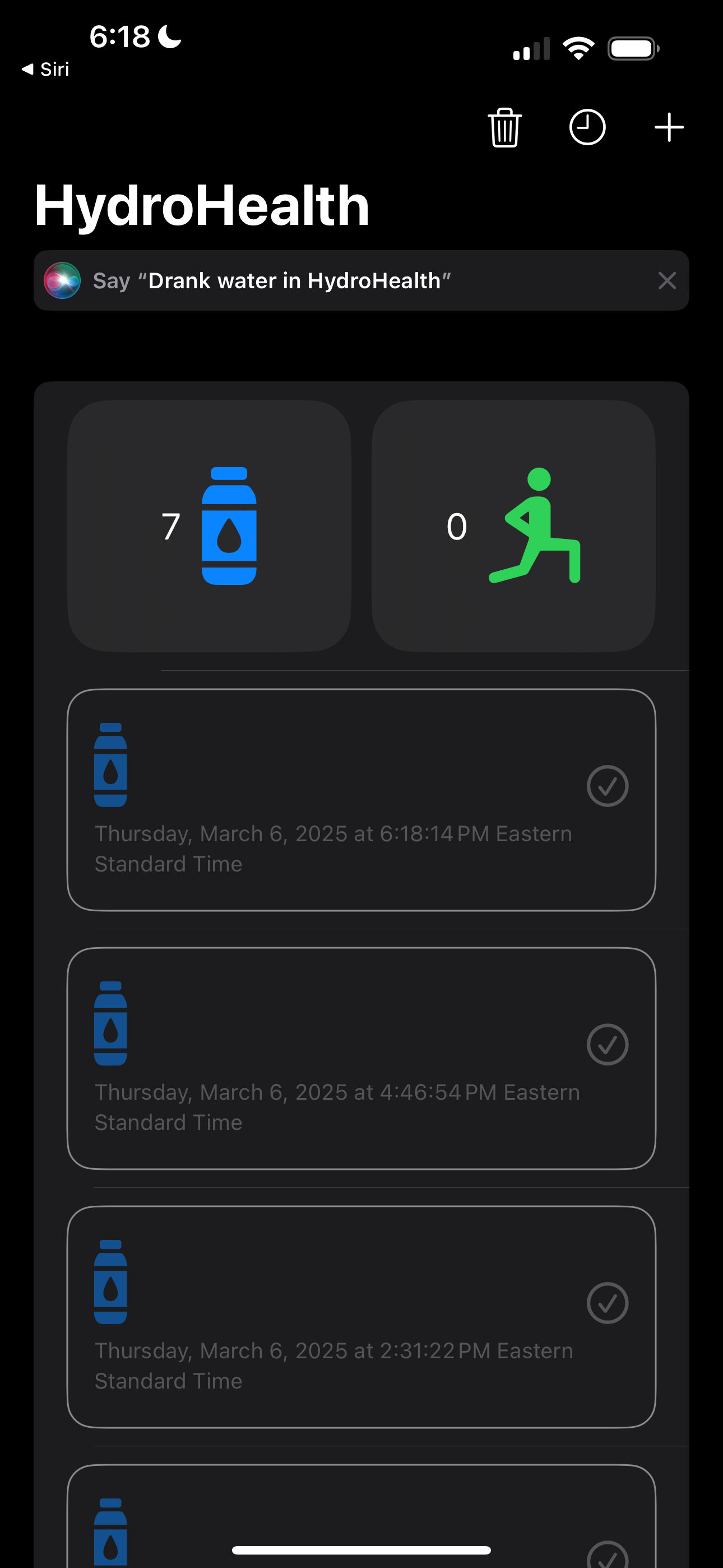
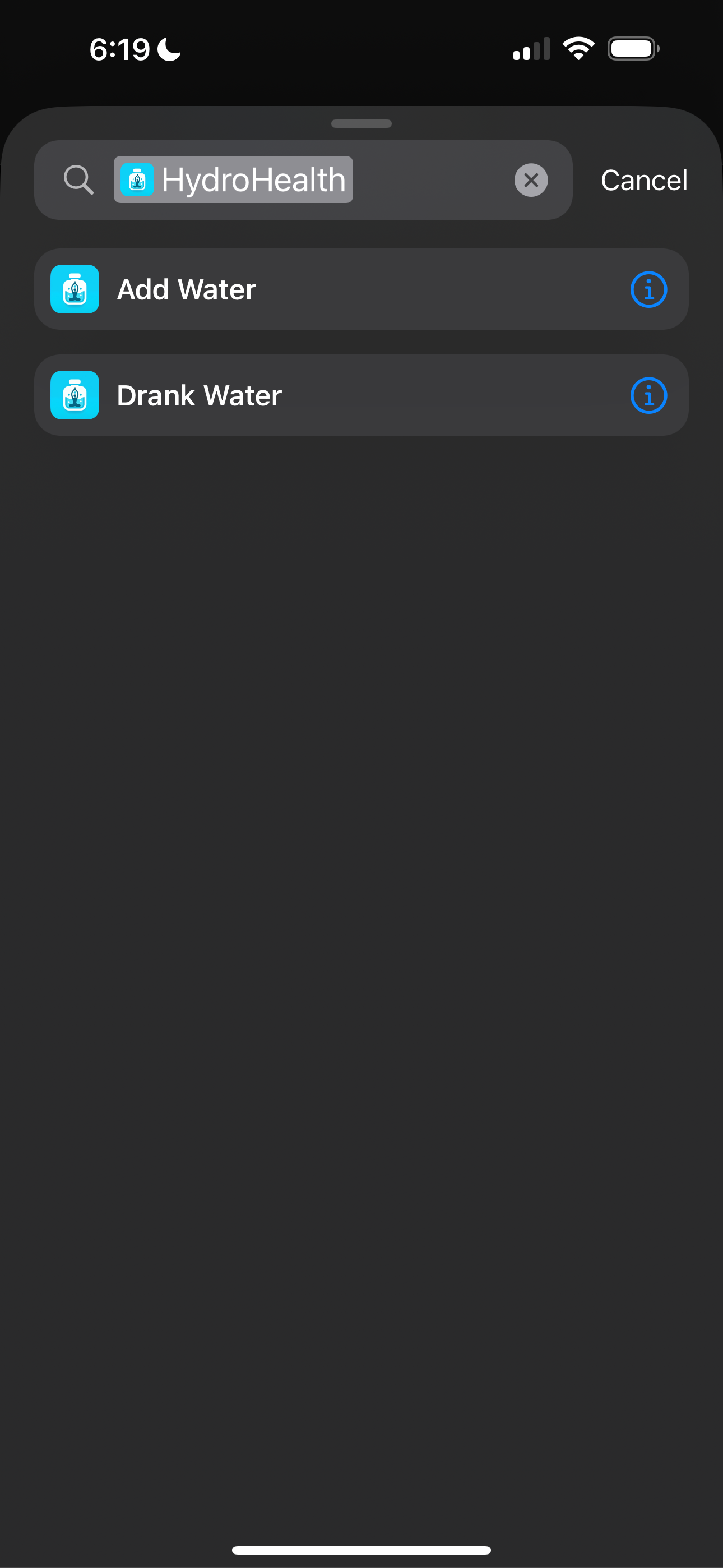
Now, I can perform various tasks and commands using Siri. For example, I can say, “Add water,” which adds a new hydration entry for the day. I’m also using an @Parameter variable, allowing users to pre-set the number of drinks in the Shortcuts app. When I drink water, I simply tell Siri, “Drank water,” to log it.
Here are some code snippets to integrate Siri into your app.
Creating an App Intent
- A title and description helps the user understand the intent.
- Parameters, such as the number of drinks allows for customization in the iOS Shortcuts app.
- The
perform()method executes when a the intent is triggered via the Shortcuts app, Spotlight or Siri.
import AppIntents

struct DrankWaterIntent: AppIntent {
    static var title: LocalizedStringResource = "Drank Water"
    static var description = IntentDescription("Marks a hydration task as complete")

    static var openAppWhenRun: Bool = true

    @Parameter(title: "Confirm")
    var confirm: Bool?

    init() {}

    init(confirm: Bool?) {
        self.confirm = confirm
    }

    @MainActor
    func perform() async throws -> some IntentResult & ProvidesDialog {
        // Add logic needed to complete a hydration task
        return .result(dialog: "Hydration task completed successfully.")
    }
}
Conforming to the AppShortcutsProvider
- The
AppShortcutsProviderprotocol is implemented to expose predefined shortcuts. Below this predefined shortcut isDrankWaterIntent. This enables users to quickly access actions like “Add water” and “Drank water” through Siri or the Shortcuts app.
import AppIntents

struct HydroHealthIntents: AppShortcutsProvider {
    static var appShortcuts: [AppShortcut] {
        AppShortcut(
            intent: DrankWaterIntent(),
            phrases: [
                "Drank water in \(.applicationName)"
            ],
            shortTitle: "Drank Water",
            systemImageName: "waterbottle.fill"
        )
    }
}
The code snippets above provide everything you need to integrate Siri and Shortcuts into your app.
Apple emphasizes the importance of making Shortcuts easily discoverable for users. One way to do this is by using SiriTipView. In the HydroHealth app, this SwiftUI view appears below the navigation bar, giving users a subtle, dismissible prompt about available Shortcuts. It also guides users to set up relevant shortcuts in the Shortcuts app.
Below is the code to implement SiriTipView in your app.
SiriTipView(
    intent: DrankWaterIntent(),
    isVisible: $isSiriTipViewVisible
)
Edit your Info.plist file
Ensure that the Info.plist file includes the following key NSSiriUsageDescription to grant the necessary permissions for enabling Siri shortcuts in your app along with the String description of your use case for using Siri shortcuts to the user.
Conclusion
Integrating App Intents, App Shortcuts, and Siri into your app can significantly enhance user experience by making common actions more accessible and seamless. With just a few lines of code, you can empower users to interact with your app hands-free, improving both convenience and engagement. By making shortcuts discoverable through components like SiriTipView, you can ensure users easily find and utilize these powerful features.
I hope this guide helps you get started with Siri integration in your iOS app. Don’t hesitate to experiment with these tools to see how they can optimize your app’s functionality and elevate the user experience.
 alexpaul.dev