
Open up iMovie and follow the steps below:
- Add the background image or video you would like to use, note the aspect ratio of the image needs to be greater than the video. For example, a 16:9 aspect ratio would work with a 4:3 main video or you can crop the main video to suit. If you do not want the default Ken Burns effect to the background image you can select the image and change the Photo Placement in Preferences. Visit this page if you want to add a blur effect or other to your background image.
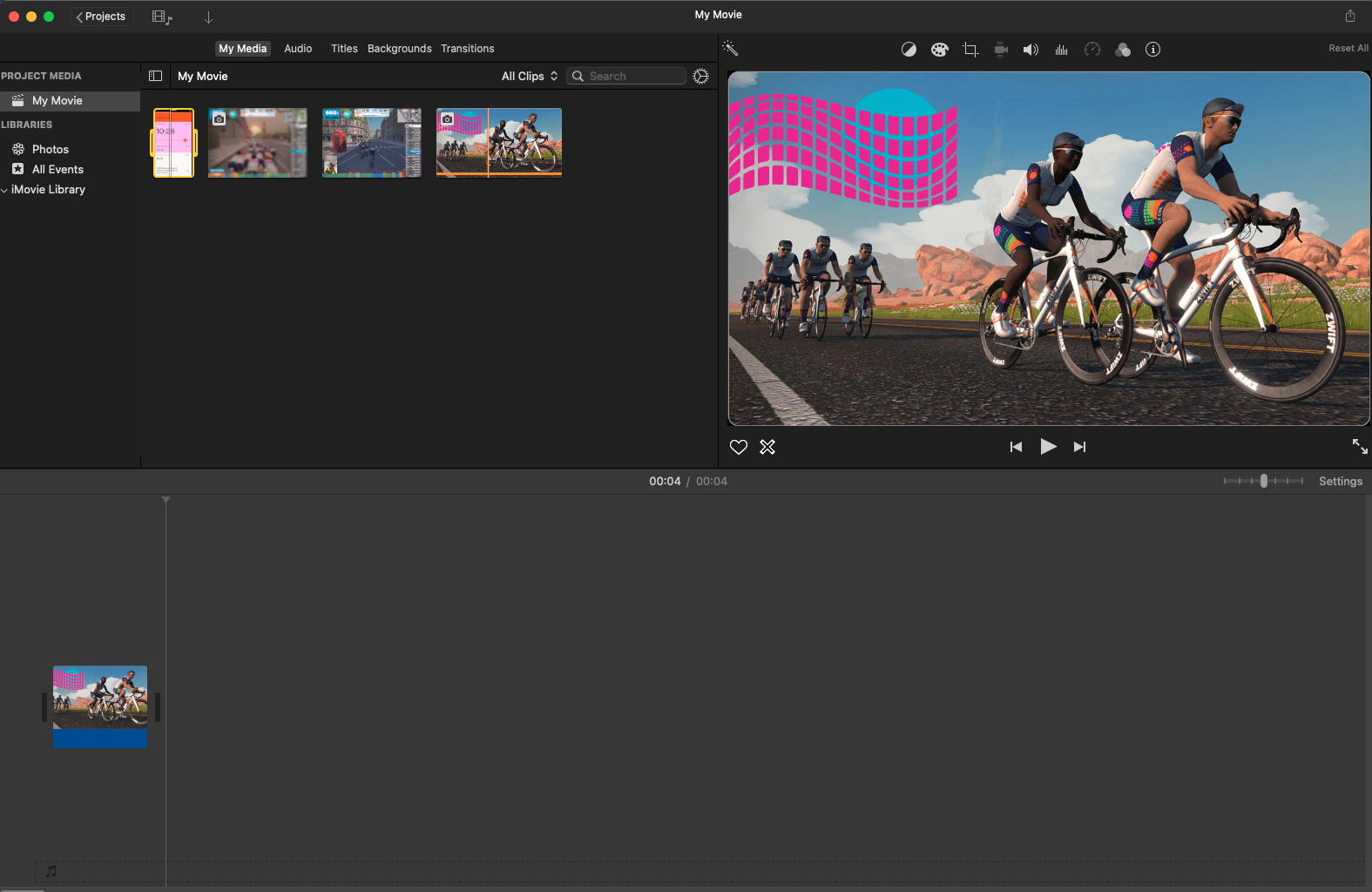
- Add the main video above the background media.


 alexpaul.dev